The short answer
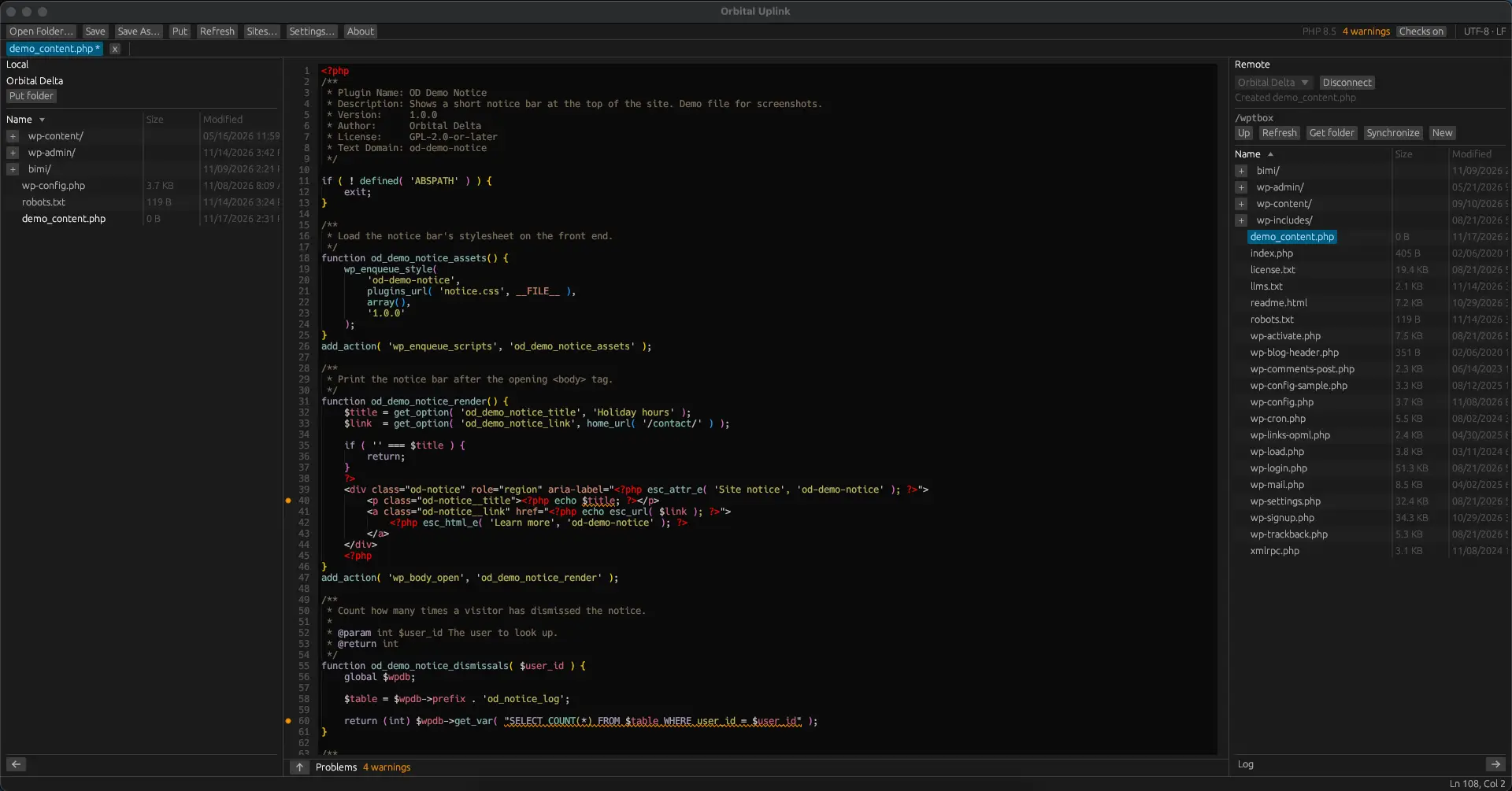
Orbital Uplink is the code editor we built for our own work. We use it to edit WordPress themes, plugins, and PHP sites directly on the server. It checks our code for mistakes and common security problems before anything goes live.
It’s an in-house tool, so you can’t download it. But if we work on your site, it’s the tool we’ll be using, and we want you to know what it does.
Why we built our own editor
For years, a lot of web work happened in Adobe Dreamweaver. You set up a site, connected to the server, and edited files without juggling separate programs. That workflow still makes sense for PHP and WordPress work.
The problem was everything around it. The subscription kept costing more, and its PHP support didn’t keep up with the versions our clients’ sites actually run.
We looked at the alternatives. Most general-purpose editors can do this kind of work, but only after you piece together extensions for the server connection, the error checking, and the WordPress knowledge. We wanted one app that does it all out of the box and works the same on Mac and Windows.
So we built Orbital Uplink.
What it does
Edits files right on the server
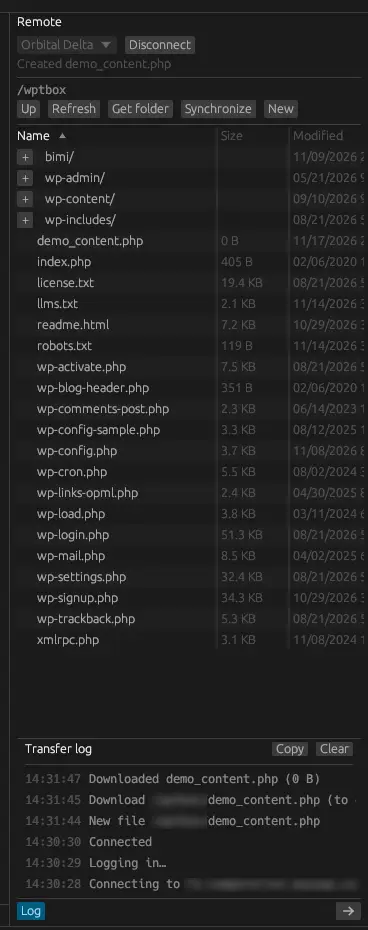
Each site gets saved with its server details, and Uplink connects over SFTP, FTPS, or plain FTP. We use SFTP whenever a host offers it, since it’s encrypted. You can browse the server, drag files between your computer and the site, and change file permissions. Every transfer is recorded in a log, so it’s easy to see what changed and when.
Passwords never sit in a settings file. They’re stored in the Mac Keychain or Windows Credential Manager, the same secure storage your computer uses for everything else.
Catches mistakes before they go live
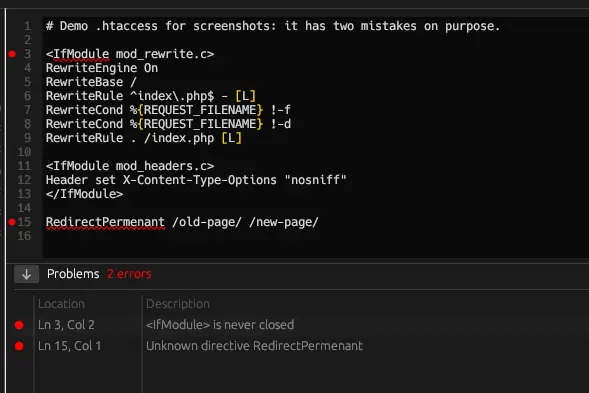
As we type, Uplink checks the file and lists anything wrong in a Problems panel. It covers PHP, JavaScript, HTML, CSS and SCSS, JSON, XML, and .htaccess files.
That last one matters more than it sounds. A single typo in an .htaccess file can take an entire site down with a “500 Internal Server Error.” Uplink spots unclosed sections and misspelled directives before the file is ever uploaded.
For PHP, we set the version each site runs on, so the checks match that server, not some other one.
Knows WordPress
Uplink knows WordPress’s own functions. As we type, it suggests them and shows what each one expects, which cuts down on small mistakes.
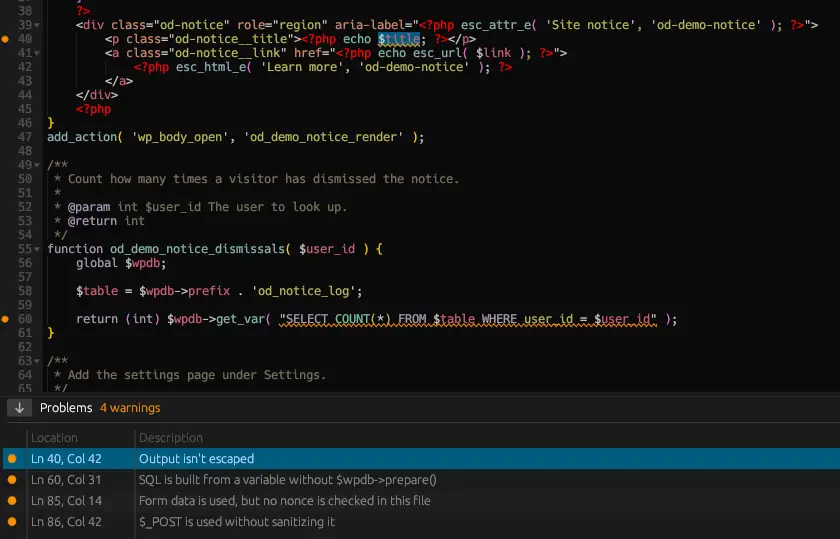
On WordPress sites it also runs security checks for the most common ways themes and plugins get exploited:
- Output that isn’t escaped, which can open the door to cross-site scripting
- Database queries built from raw variables, which can lead to SQL injection
- Form and URL input used without being cleaned first
- Form handling without a nonce, WordPress’s check that a request is genuine
These follow WordPress’s own security guidance on escaping (opens in a new tab). A check like this doesn’t replace careful work, but it means a slip gets caught in the editor instead of on a live site.
Compares and syncs with the server
Before we change a live file, we can compare our copy with the server’s side by side, with every difference highlighted. If someone else edited the site in the meantime, we’ll see it before we overwrite anything.
For bigger jobs, Synchronize lists every file that differs between our copy and the server, with a suggested upload, download, or skip for each.
Doesn’t lose work
If the app or the computer crashes, Uplink keeps copies of unsaved changes and offers them back the next time it opens. Those copies are kept in the app’s own folder, never next to the site’s files, so they can’t be uploaded by accident.
And the everyday things
Syntax highlighting, code folding, Find and Replace, Find in Files, and Format Document to tidy up messy code. Nothing exotic, just the basics done well.
What this means for you
You’ll never open Uplink yourself, but it shapes the work we do on your site:
- Fewer surprises on your live site. Errors and broken .htaccess files get caught before they’re uploaded, not after a visitor finds them.
- Safer code. Every PHP file we touch on a WordPress site is checked for the security slips that most often get sites hacked.
- Your logins stay protected. Your server passwords are kept in our computers’ secure password storage, not in a plain text file.
- Nothing gets overwritten by accident. We can see what changed on the server before we upload over it.
- Faster fixes. When something breaks, we can connect, find the problem, and fix it from one place.
Where we fit in
We build and maintain WordPress sites, and Uplink is part of how we keep that work careful and quick. It’s also a good example of how we work. When a tool doesn’t do the job well, we find a better way.
If your site needs fixes, updates, or ongoing care, tell us what’s going on. And if you’re wondering what regular upkeep should include, our post on WordPress maintenance covers it.
Frequently asked questions
Can I download Orbital Uplink?
Not right now. It’s a tool we built for our own work, and it isn’t available to the public.
Does it work on Mac and Windows?
Yes. It runs on both, so we get the same tools and the same checks on any machine.
Why not just use VS Code?
VS Code is an excellent editor, and with the right extensions it can do much of this. We wanted the server connection, the error checks, and the WordPress knowledge built in and working together, without assembling and maintaining a set of extensions.
Does it only work with WordPress?
No. It works with any PHP or static site. The WordPress hints and security checks only switch on for WordPress sites.